Provider Built-in Tools in the Playground
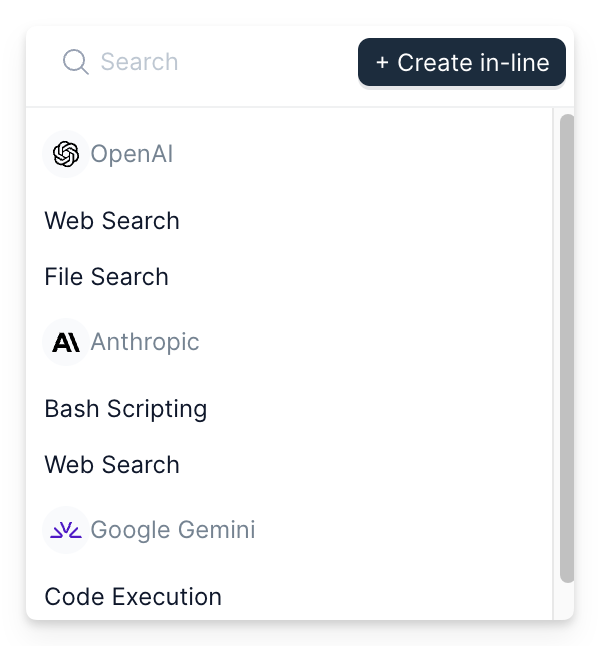
The Playground now supports provider built-in tools. You can use web search, code execution, file search, and other native provider tools directly when developing prompts.
What Are Provider Built-in Tools?
Provider built-in tools are capabilities that LLM providers offer natively. Unlike custom tools that you define with JSON schemas, these tools are managed by the provider. When the model needs them, the provider handles execution and returns results automatically.
Common built-in tools include:
- Web search: Fetch current information from the internet
- Code execution: Run Python or JavaScript code
- File search: Search through uploaded documents
- Bash scripting: Execute shell commands (Anthropic)
Supported Providers and Tools
Different providers offer different built-in tools:
OpenAI
- Web Search: Access current information from the web
- File Search: Search through files you upload to OpenAI
Anthropic
- Web Search: Retrieve information from the internet
- Bash Scripting: Execute bash commands in a sandboxed environment
Gemini
- Web Search: Search the web for current information
- Code Execution: Run Python code to perform calculations and data analysis
How to Use Built-in Tools
Adding Tools in the Playground
- Open your prompt in the Playground
- Click the "Add Tool" button in the configuration panel
- Choose the tools you want to enable for your prompt
- Test your prompt; the model will automatically use tools when needed
The tools are saved with your prompt configuration. When you commit changes, the tool configuration is stored with the variant.
Invoking with Tools via LLM Gateway
When you invoke prompts through Agenta as an LLM gateway, the tools are automatically included in the request. The provider handles tool execution during the call.
Your application receives the final response after all tool calls complete. You don't need to handle tool execution yourself.
Tool Definitions in the Registry
Tool definitions follow the LiteLLM format. You can view the exact tool schemas in the Prompt Registry. This helps you understand what parameters each tool accepts and how the provider will use it.
Example Use Cases
Research Assistant with Web Search
Create a prompt that answers questions using current information:
You are a research assistant. Answer the user's question with accurate,
current information. Use web search when you need recent data.

Question: {{question}}
Enable web search in the tool configuration. When users ask about current events or recent data, the model automatically searches the web for information.
Data Analysis with Code Execution
Build a data analysis prompt that performs calculations:
Analyze the following data and provide insights:

{{data}}

Calculate statistics and create visualizations as needed.
Enable code execution for Gemini. The model can run Python code to calculate statistics, process data, and generate visualizations.
Document Q&A with File Search
Create a prompt that answers questions about uploaded documents:
Answer the user's question based on the uploaded documentation.
Be specific and cite relevant sections.

Question: {{question}}
Enable file search for OpenAI. The model searches through your uploaded files to find relevant information.
Next Steps
Learn more about using the Playground to develop and test prompts with provider built-in tools.